
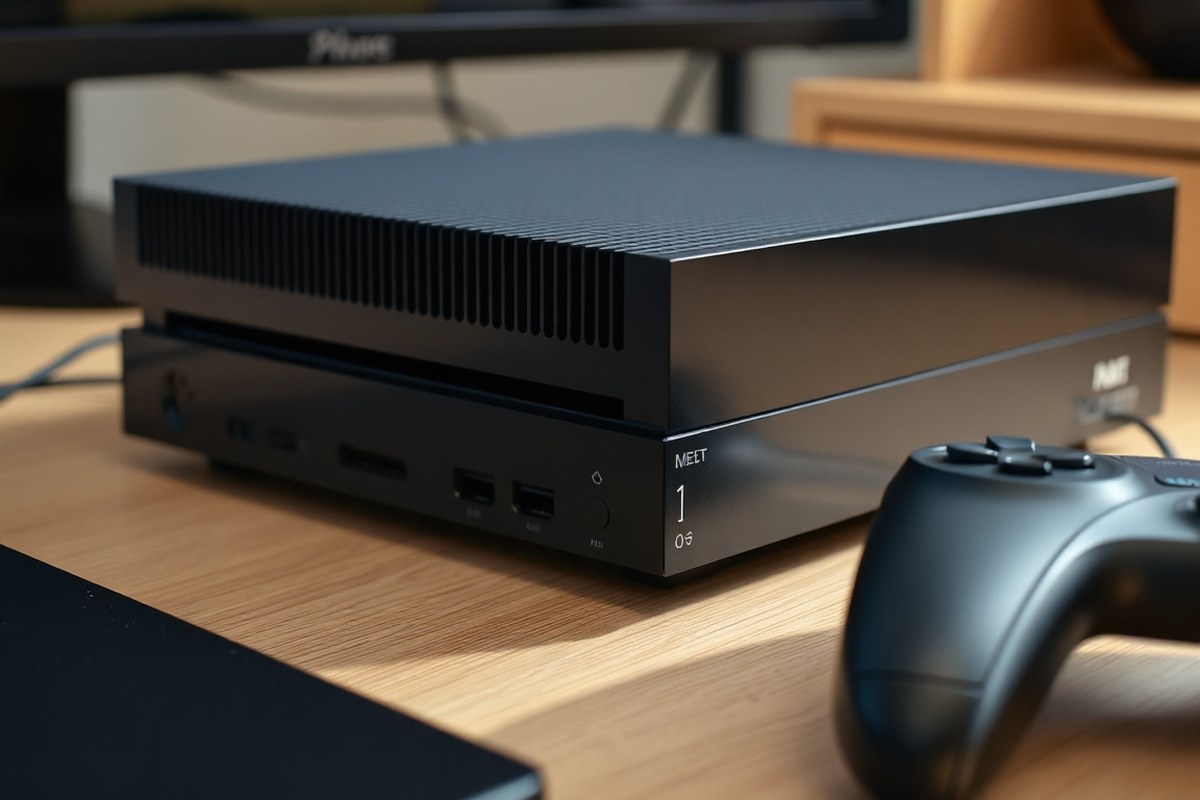
Do Consoles Get Slower Fast? 10 Key Facts and Fixes That Work
Do consoles get slower fast? Usually, they do not slow down quickly.
Most speed changes happen gradually over time due to software updates and storage buildup. Games and system updates often require more processing power, which can make older consoles feel slower.
You can keep your console running smoothly by updating software regularly. Clearing unused files also helps avoid slowdowns and improves load times. Deleting old games and apps frees up space and keeps the system responsive.
Watch for overheating and poor ventilation, as heat can reduce performance. Dust buildup inside the console can block airflow and cause the system to throttle speed. Placing your console in a cool, open spot keeps it from getting too hot and helps maintain steady performance.
Key Takeaways
- Run system updates often to keep your console software optimized.
- Clear storage by deleting old games and unused files regularly.
- Limit background processes to free up system resources.
- Use the DNS addresses 8.8.8.8 or 1.1.1.1 to improve your internet speed.
- Place your console in a ventilated area to prevent overheating.
- Secure power cords and check HDMI connections for consistent performance.
Do Consoles Get Slower Fast? Understanding Performance Decline

Gaming consoles don’t usually slow down quickly right after purchase. Most players start noticing performance issues after a year or two. This delay happens because console hardware stays optimized for a while.
Software also stays optimized for some time. Then small issues slowly build up.
The main causes of slowdown come from factors like system clutter, overheating, and hardware wear. Over time, saved data and installed games can fill storage space and fragment files. This fragmentation can make accessing game data slower, which affects load times and responsiveness.
Heat also plays a role. Consoles generate a lot of heat during play and need good ventilation. Dust buildup can block air flow and cause overheating.
Running hot can make the processor slow down to avoid damage. The graphics chip can slow too. This reduces game speed and performance.
Some older components like hard drives can wear out with frequent use. This wear might cause longer load times or stuttering images. Consoles with solid-state drives (SSDs) slow down less from this issue.
SSDs have no moving parts inside. This helps keep speeds steady longer.
Background tasks and software updates may also affect speed but usually only cause small slowdowns. Running many apps or skipping software updates can cause hiccups. A well-maintained console that has regular updates and clear storage runs smoother for longer.
Signs of significant performance drops typically show after one or two years of regular use. Consoles that get heavy use every day may show issues sooner. Keeping your console clean, well-ventilated, and updated helps prevent these slowdowns.
How Software Updates and System Management Affect Speed

Software updates can both improve and sometimes slow down your console. Background apps running while you play often reduce your system’s speed. Resetting cache and optimizing software clears out these problems, helping your console run smoothly again.
Benefits of Keeping Software Updated
System and game software updates often fix bugs that slow your console down. They can also improve features and add optimizations that speed up load times. Regular updates prevent issues caused by outdated software or compatibility problems with new games.
Modern consoles download updates automatically if connected to the internet. But it helps to check manually.
Installing system firmware updates ensures your hardware runs as intended. Ignoring updates can cause lag, crashes, or missed performance improvements.
Managing Background Applications and Downloads
Running multiple apps or games at the same time eats up your console’s processing power. Background downloads or streaming can create lag during gaming sessions. Disabling auto-start apps and pausing downloads keeps your system responsive.
Check which apps run in the background and close those you don’t need. Interrupting background tasks before playing frees up memory and CPU resources. This also reduces heating, helping maintain stable performance over time.
Pause any ongoing downloads before launching your game to avoid slowdowns and lag spikes.
Resetting System Cache and Performing Software Optimizations
Clearing the console’s cache removes temporary files that may cause slowdowns. This is a quick fix that often improves load speed. Problems that continue might be fixed by resetting your console to factory defaults.
Optimizing software also means adjusting settings for better balance between graphics and speed. Lowering graphics detail on demanding games may improve frame rates without harming gameplay. Regular maintenance like this keeps your console in good shape.
Follow these steps to reset cache and optimize your console:
- Power off your console completely and unplug it for a minute.
- Plug it back in and power it on to clear the cache automatically.
- Check for and install any system updates available.
- Close any background apps before starting games.
- Disable auto-start for apps you don’t use frequently.
- Adjust game graphics settings if performance lags.
- Should problems last, back up your data then reset to factory settings.
- Set reminders to repeat these steps every few months.
Resetting your console deletes custom settings, back up data before proceeding.
Impact of Storage and Data Management on Gaming Speed
Storage plays a big role in how fast your console runs. Full storage can delay load times and cause lag. Corrupt data or a cluttered cache can also slow things down, especially over time.
Checking Available Storage Space
Start by checking how much free space you have on your console. Full drives leave less room for temporary files and slow down game loading.
Go to your console’s settings and look under storage or system management. This shows your total space and what’s taking up room.
Try to keep at least 10 to 20 percent of your storage free. Less than that can cause slowdowns and longer load times. You can watch for slowdowns during game loading times.
You might also see delays when moving through system menus. This often means your storage is under pressure.
Deleting Unnecessary Games and Apps
Old games and apps you no longer use take up storage and cause clutter. Removing them frees space and can speed up your console. Deleting unused items also cuts down on system cache buildup and possible data corruption.
Here’s how to clean your storage step-by-step:
- Open your system settings and find the storage section.
- Review the list of installed games and apps.
- Delete those you haven’t played in months or won’t play again.
- Clear the system cache (usually found in maintenance or system settings).
- Restart your console after deleting to refresh the system.
Clearing cache removes temporary files that build up and slow operations. Doing this monthly keeps your console running smoother long-term.
Using External Drives or Upgrading to SSDs
Installing games on slower or nearly full drives can worsen load times. Using a fast external SSD or upgrading your internal drive can improve speed. SSDs load data quicker, reducing wait times in games.
Your console might support external drives. Try plugging in a USB SSD and moving some games there.
This spreads storage load and keeps your internal drive less full. Upgrading internal storage takes more effort and may cost $100 to $200 depending on the drive.
Keep these factors in mind:
- Use USB 3.0 or better for external drives to avoid bottlenecks.
- Only move games that support external storage on your console.
- Back up data before upgrading internal drives in case of errors.
- Regularly check drive health to catch data corruption early.
- Keep your console cool, as overheating can worsen drive performance.
Well-organized storage keeps your gaming smooth and cuts down on crashes. Moving or deleting games isn’t difficult but helps your console breathe easier after months of play.
The Role of Overheating and Physical Maintenance
Overheating can slow your console by forcing it to cut performance. When your console overheats, it might shut down or lag during gameplay. Place your console where air can flow freely.
Avoid putting it in closed spaces. This helps prevent overheating.
Dust buildup blocks vents and fans, which causes heat to build up inside. Dust also makes internal fans work harder, wearing them out faster and reducing cool airflow. Cleaning your console every few months stops this and helps keep speeds steady.
Use a can of compressed air to blow dust from vents and fans gently. Avoid using vacuum cleaners since they can damage delicate parts.
Clean the HDMI port using compressed air. This keeps connections strong and prevents screen flickering.
- Put your console on a hard, flat surface, not carpet or fabric.
- Keep the console away from heat sources and direct sunlight.
- Ventilate the room or use a fan to keep air fresh around the console.
- Use compressed air every 3 to 6 months to clean vents and ports.
- Turn off your console and unplug it before cleaning for safety.
- Gently wipe discs with a microfiber cloth to avoid slow reads.
After cleaning, check if the console runs cooler during games. The system should stay quiet and not shut off unexpectedly.
Reposition the console when it keeps overheating. Check fan condition and consider professional service.
Environmental factors like dusty rooms or poor placement affect your console’s speed. Keeping your gaming area clean and cool stops this from happening. Regular physical maintenance helps your console last longer and play faster with fewer issues.
Network Connection’s Effect on Perceived Console Slowness
Your internet connection directly affects how fast your console feels. Slow or unstable internet often causes lag, which feels like the console is slowing down. Using an Ethernet cable usually cuts down lag.
It gives steadier speeds. Wired connections beat Wi-Fi for games.
Wi-Fi signals can drop if your console is far from the router. Walls can block the signal too. This causes unstable speed.
That can cause delayed input, stuttering graphics, or long load times during online play. Placing your console close to the router or using a Wi-Fi extender can help. But Ethernet is best for consistent gaming.
Routers can also build up glitches over time that slow your network. Restart your router at least once a week. This clears temporary hiccups and refreshes your connection.
Routers older than five years often don’t perform well. Getting a newer router can speed things up. It may also reduce lag.
- Use an Ethernet cable for wired connection if possible.
- Place your console near the router if using Wi-Fi.
- Reboot your router weekly to refresh network performance.
- Update router firmware regularly to fix bugs and improve speeds.
- Check your internet plan to ensure it suits gaming needs.
- Limit other devices using the network during gaming sessions.
- Consider a gaming-optimized router if lag is a constant issue.
Restarting your router weekly can reduce network lag and improve gaming.
Online games need stable internet to run smoothly. Slow responses in games may mean your connection is weak. It doesn’t always mean your console is slow.
Lag often comes from the internet. Make sure your network setup matches your gaming style to enjoy fast, smooth gameplay.
How Console Settings Influence Speed and Visual Quality
Your console settings can affect gaming speed and visual quality. Graphics settings like resolution use much processing power.
Lowering resolution often frees up that power, so your game runs smoother. You might notice less detail, but gameplay feels faster and less laggy.
Power management settings also matter. Some consoles slow down or enter sleep mode after inactivity, which can delay your next session. Adjusting sleep settings to keep the console active helps maintain consistent performance without interruptions.
Use the table below to see common settings that influence speed. It shows what to adjust, why, and what you might see after changing them.
| Setting Area | Adjustment | Effect on Speed | Visual Impact |
|---|---|---|---|
| Graphics | Lower resolution (e.g., 4K to 1080p) | Frees up processing power, reduces lag | Less sharp visuals, lower detail |
| Graphics | Turn off motion blur or shadows | Speeds up frame rates | Flatter textures, less realism |
| Power | Set sleep mode to longer intervals | Prevents slowdowns from frequent sleep/wake | No direct visual effect |
| Power | Disable auto power saving features | Ensures stable performance during play | No direct visual effect |
To adjust these, open your console’s settings menu. Look for Display or Video options to change resolution and graphics effects. Lower resolution from 4K to 1080p or 720p for faster gameplay.
For power settings, find the Power or System section in your settings. Increase the time before sleep mode or turn off power-saving modes while gaming. This keeps the hardware ready and avoids delays.
These changes usually take seconds to apply but can affect your experience right away. Players with slower consoles often prefer lower graphics for better speed. Newer models handle higher graphics settings better.
You can keep your settings high. This gives the best visuals for your game.
External Enhancements: Upgrades and Accessories That Boost Speed
Upgrading a console’s storage to an SSD can make a big difference in game load times. Traditional hard drives often take 30 to 60 seconds to load games. SSDs can cut load times by half or more.
Sometimes, loading takes under 20 seconds. This happens because SSDs access data much faster. This upgrade is especially useful if you notice long waits after you press “start.”
Upgrading to a Wi-Fi 6 router or using Ethernet reduces lag in games. Switching your DNS to 8.8.8.8 or 1.1.1.1 also quickens game responses and matchmaking.
Besides hardware upgrades, some accessories help with control responsiveness. High-quality gaming controllers with lower input lag give you smoother gameplay.
But they won’t impact load times. Focus on upgrades that reduce mechanical delays and data transfer slowdowns for the biggest speed gains.
Choosing to upgrade hardware or use software fixes depends on your console’s slowdown cause. Check what part causes delays before spending money. This way, you fix the right issue.
Software fixes clean out junk files, update system software, or optimize settings. These help mostly when the system is cluttered or outdated.
Hardware upgrades work better if slowdowns come from physical limits. Games that take a long time to start or load can benefit from an SSD. Replacing your slow HDD with an SSD speeds up loading noticeably.
This switch is often worth the cost. Laggy network performance might mean your router is the problem. Upgrading your router often improves online game smoothness.
This step helps if software fixes don’t work. Both upgrades usually involve some costs and setup time but improve performance measurably.
| Upgrade Type | Estimated Time Savings | Typical Cost | How to Apply |
|---|---|---|---|
| SSD Storage | 50%+ load time reduction (e.g. 30s to 15s) | $50, $150 (depends on size) | Install internal/external SSD, transfer games |
| Fast Router (Wi-Fi 6) | Improves lag and download speed | $100, $300 | Replace or upgrade router, connect console |
| Manual DNS Setting | Faster DNS resolution, better ping | Free | On your console, go to the network settings and switch DNS to 8.8.8.8 or 1.1.1.1. This quick, free change can make game servers respond faster. |
| High-Quality Controller | Lower input lag | $50, $100 | Buy and pair via Bluetooth or cable |
Installing an SSD involves opening the console or using external adapters. Some consoles make internal upgrades easier than others. For example, the PS5 supports internal NVMe SSDs.
But Xbox consoles use external SSDs connected by USB. A good router upgrade means choosing one that fits your home size and internet speed.
The DNS change is simple and costs nothing. But it only speeds up lookup times, not actual download speeds.
Upgrades pay off most when your console is clearly limited by hardware. Software fixes should come first because they cost nothing and still help. When changing settings doesn’t fix your slow console, consider hardware upgrades.
New parts can restore fast load and smooth gameplay. This is often needed for older systems.
Common Console Performance Problems and Easy Fixes
Common issues that make consoles feel slow include lag, freezing, and disc drive errors. These problems often relate to hardware or software glitches that you can usually fix yourself. Quick troubleshooting can stop small issues before they turn into costly repairs.
Checking for Game or Disc Drive Issues
Games freezing or lagging might come from bad game data or disc drive problems. Dirty or damaged discs reduce reading speed. Console lag can result if the disc drive struggles to read data continuously.
Follow these steps to check for disc or game problems:
- Turn off your console and remove the game disc.
- Inspect the disc for scratches or smudges under a bright light.
- Clean the disc using a microfiber cloth wiping from the center outward.
- Reinsert the disc and restart the console.
- Try running a digital version of the game when errors keep happening.
- Check if other discs or games have the same issue.
- Update your console system and game software to the latest version.
Never force a disc into the drive to avoid hardware damage.
Testing Controller and Peripheral Connections
Slow or freezing gameplay may sometimes come from controller connection issues. A faulty controller can cause lag, input delays, or unresponsiveness. Testing your devices helps rule out peripheral problems.
Try this quick controller test:
- Disconnect your controller and restart the console.
- Reconnect the controller using a wired connection if possible.
- Check if the lag or freezing continues during gameplay.
- Pair a different controller with your console when problems don’t stop.
- Try the problematic controller on another console to isolate the issue.
Testing a controller on a different console confirms if it needs repair or replacement.
Restarting and Resetting Console Software
Many performance issues come from temporary software glitches. Restarting clears the system cache and refreshes processes. A factory reset can fix persistent problems but erases all saved settings and data.
Here’s how to restart or reset your console safely:
- Hold the console power button for 10 seconds to turn it off.
- Unplug the power cord and wait 30 seconds before plugging it back.
- Turn on the console and check if performance improves.
- Back up your data to cloud or external drive if lag keeps going.
- Go to system settings and select the factory reset option.
- Follow prompts to reset the console while retaining or deleting saved data.
- Reinstall games and apps after reset to test if issues clear up.
Back up your data before any reset to avoid irreversible data loss.
How Different Console Brands Compare on Speed and Longevity
Xbox, PlayStation, and Nintendo consoles each age differently in speed. Xbox consoles may slow down due to frequent updates and storage build-up. PlayStation devices often show wear from both software updates and needing more cooling over time.
Nintendo consoles stay steady longer. They use less powerful hardware. This can slow new games down.
Maintenance needs vary too. Xbox systems usually need regular storage cleanup and occasional hardware checks.
PlayStations benefit from more cleaning to prevent overheating because they run hotter under load. Nintendo units often require simpler upkeep, mainly software updates and occasional system resets.
Here’s a quick table comparing typical slowdowns, maintenance, and tips across popular current console brands:
| Console Brand | Common Slowdown Cause | Maintenance Focus | How Often to Maintain | Typical Repair/Upgrade Cost |
|---|---|---|---|---|
| Xbox Series X|S | Storage clutter, software updates | Regular disk cleanup, system resets | Every 3-6 months | $100-$150 for repairs or storage upgrades |
| PlayStation 5 | Overheating, software bloat | Dust cleaning, cooling checks, update management | Every 3 months | $150-$200 for fan repairs or SSD upgrades |
| Nintendo Switch | Hardware limits, occasional software lag | System updates, factory resets | Every 6-12 months | $50-$100 for battery or screen repair |
For Xbox, storing games on the cloud or an external drive helps keep speed steady. PlayStation users should keep vents clear and avoid blocking airflow. Nintendo’s hardware is slower.
New games can lag when they push the CPU. But maintenance is easier. Swapping power outlets or HDMI ports can fix odd slowdowns on any system.
Choosing your console depends on how much time you want to spend on upkeep. Xbox offers power but asks for regular cleanup.
PlayStation requires more attention to cooling. Nintendo’s simplicity means fewer slowdowns but limits speed on big new releases.
When to Seek Professional Repair or Replacement
Your console may need professional repair if it won’t turn on after basic checks. Another sign is if the power supply or charging port is damaged or loose. These issues usually require a technician because they involve internal parts and soldering.
Games taking much longer than usual to load can hint at deeper problems. Check how long your games take to start. Watch if your console shuts down suddenly.
Notice if it often gets too hot during use. These points help the technician diagnose the issue faster.
- Console doesn’t power on or shut down randomly
- Power supply or charging port feels loose or looks damaged
- Game loading times increase dramatically
- Console overheats despite cleaning and good ventilation
- Frequent freezes or errors during gameplay
- Visible hardware damage or broken buttons
Repair shops can do full diagnostic tests on your console. They can replace parts like the power supply. Broken ports can be fixed, too.
The cost depends on the problem but expect $50 to $150 for common repairs. Repairs can take a few days, depending on part availability.
Replacement might be smarter if repair costs approach the price of a new console. New consoles also mean updated hardware and software support. Keep in mind repairs don’t always fix speed issues caused by software or network problems.
Before paying for repair, ask the shop their warranty on the work. A solid warranty means less risk if the problem returns. Also, check if the repair covers fixing loading speed or just power and hardware problems.
Step-by-Step Action Plan to Keep Your Console Running Smoothly
Follow these steps to prevent your console from slowing down fast. Track your progress to see real improvements.
- Day 1: Delete unused games and apps to free up storage space. Check if game load times speed up afterwards.
- Week 1: Update your console’s software and games. Successful updates often fix bugs and improve performance.
- Week 2: Clean your console’s vents and fans carefully with compressed air. Notice if it runs cooler during gameplay.
- Week 3: Adjust your console settings to balance graphics and speed. If games feel smoother, the changes helped.
- Month 1: Test your internet speed and switch from Wi-Fi to Ethernet if possible. Faster downloads and less lag usually follow.
- Month 2: Consider adding an external SSD if storage speed feels slow. Games should load noticeably faster after setup.
- Ongoing: Restart your console regularly and close background apps. This keeps memory clear and maintains speed over time.
Frequently Asked Questions
Why Do Some Older Consoles Feel Slower over Time?
Older consoles may feel slower because new games demand more power. Also, storage gets cluttered, and hardware ages, affecting speed and load times.
Can Frequent Game Installs and Uninstalls Slow My Console?
Yes, constantly installing and uninstalling games can fragment storage. This may cause slower load times and performance dips on your console.
Does Running Too Many Apps in the Background Affect Console Speed?
Running multiple apps can eat up system memory and processing power. It may slow down your console, so close unused apps for better gaming.
Can Console Slowness Be Caused by a Faulty HDMI Port?
Yes, a bad HDMI port can cause display issues that feel like slowness. Check or replace the port if your game visuals lag or stutter strangely.
How Does Power Supply Age Affect Console Performance?
Older power supplies might deliver inconsistent power, causing slowdowns or crashes. Replacing a failing power source can help your console run more smoothly.
Wrapping Up
Consoles don’t generally slow down fast if you keep them updated and maintained. You can stop most speed drops early by managing storage and cooling. Start by clearing space and updating software to see immediate benefits.



One Comment