

Does Canvas Track Copy and Paste? What Actually Happens and What You Should Know
Does Canvas track copy and paste? No, Canvas does not record when you copy or paste text.
These actions don’t show up as separate events in quiz logs or activity reports. The system doesn’t track copying and pasting during quizzes.
Canvas logs only four quiz actions: viewing a question, answering it, stopping, and resuming. Copying and pasting inside a quiz won’t show up there at all. Your instructors, however, can still review your submissions and check them with plagiarism tools.
Focus on submitting your work correctly to avoid issues. Follow the right steps when turning in assignments. Plagiarism tools like Turnitin detect copied content by checking text similarity, not by tracking copying actions.
Key Takeaways
- Canvas does not record copy or paste actions in quiz or activity logs.
- Quiz logs track only viewing, answering, stopping, and resuming questions.
- Assignment submissions show the text you submit but not how you created it.
- Turnitin requires at least 20 words before it processes a submitted paper.
- A high similarity score needs careful review of what parts match and why.
- Using LockDown Browser or proctoring tools adds monitoring beyond Canvas logs.
Can Canvas Detect When Students Copy and Paste Text?
Canvas itself does not track when you copy or paste text during assignments or quizzes. The system does not log clipboard actions as events. This means your instructor cannot see whether you copied or pasted text inside Canvas.
When you type or paste content into a Canvas text box, that text saves normally. However, Canvas records only the text you submit, not how you entered it. Paste events don’t show up for teachers in Canvas.
Canvas doesn’t track clipboard use. It also doesn’t mark pasted text clearly.
For quizzes, Canvas logs actions like answer entries and page focus changes. But it does not note if you pasted text or copied from outside sources. Your instructor sees the final response, not the editing steps or paste times.
When you paste content, Canvas records the final text and time of submission. Canvas can only show text that matches exactly.
This applies when you paste from another document. It cannot spot the exact moment you pasted or warn instructors directly.
This lack of clipboard tracking applies to both Classic and New Quizzes. Canvas only tracks basic answer saves and page activity. Copy-paste detection depends on other tools or proctoring software, not Canvas itself.
Pasting inside the Canvas assignment text entry field also doesn’t stand out. Teachers can read everything you submit on Canvas.
They can’t see if text was pasted or typed. Copy-paste actions leave no special log entries or alerts in the system.
Canvas does not track copy or paste as events. It doesn’t record these actions anywhere.
Your final submitted text is visible, but paste history is not. Instructors see only your answers, without any details about clipboard use during input.
How Canvas Quiz Logs Handle Copy and Paste Attempts
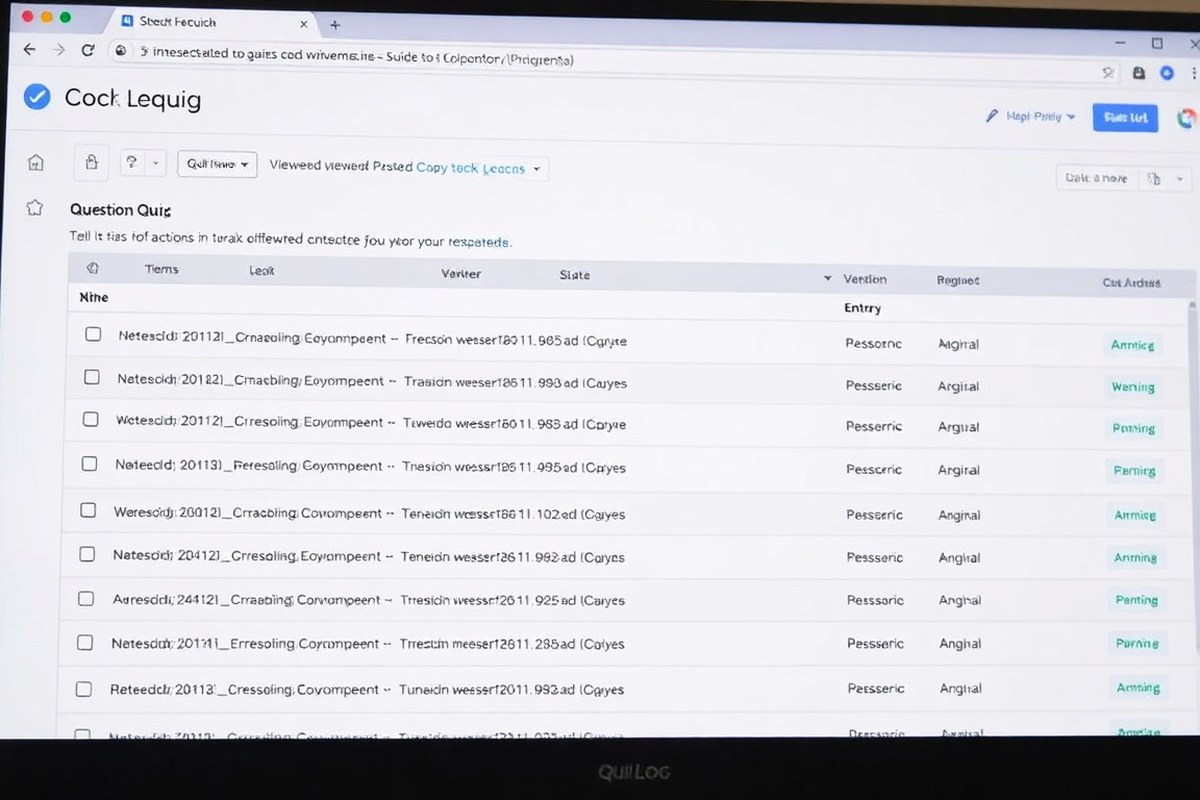
Canvas quiz logs track only a limited set of user actions during quizzes. They do not log copy or paste activities as separate events. The logs track page views, answers, and tab switches.
They help instructors spot suspicious behavior. Clipboard use is not recorded directly.
Four Key Quiz Log Status Types
Canvas quiz logs record exactly four main actions during a quiz attempt. These times include viewing a question and answering it.
They also include stopping and resuming quiz page viewing. This gives instructors a simple, clear timeline of what you did on the quiz page.
Here is what those actions indicate:
- Viewed a question, you opened and read a quiz question.
- Answered a question, you submitted an answer to that question.
- Stopping viewing means leaving the quiz tab or window for 15 seconds or more.
- Resumed, you returned to the quiz page after leaving it.
These four event types help monitor focus and progress but don’t track keystrokes or clipboard actions.
Differences Between Classic Quizzes and New Quizzes
Classic Quizzes show a message when you leave the quiz tab. It says, “Stopped viewing the Canvas quiz-taking page.””
This happens if you switch tabs for 15 seconds. It shows instructors when you stop focusing on the quiz window.
New Quizzes have their own logging system with similar statuses but different wording. Both log when you leave or return to the quiz tab.
They do not track specific clipboard actions. This means neither logs when you copy or paste text in or out of the quiz.
LockDown Browser and proctoring software can restrict switching tabs or copying altogether. But Canvas logs alone don’t catch clipboard use.
Limits of Quiz Logs in Detecting Paste Actions
Canvas quiz logs don’t capture copy or paste as distinct events. You might paste answers into quiz fields.
But logs only note viewed or answered questions. They don’t record how the answer was entered.
Copying a quiz question into another tab hides the quiz page. If you leave the quiz for more than 15 seconds, logs mark it as stopping view.
They don’t mark it as copying. This helps detect tab switching but not clipboard use.
Instructors use timing patterns or extra tools, not just Canvas logs, to detect paste cheating.
Consider that pasting answers won’t show up in Canvas logs. But switching tabs for more than 15 seconds will be recorded.
What Role Do Proctoring and LockDown Browser Play in Copy-Paste Monitoring?
LockDown Browser and proctoring tools work with Canvas to block or log copy-paste attempts during exams. They either prevent pasting or record when you try, then notify instructors if needed. These tools ensure you can’t copy or paste without detection while taking a quiz.
When LockDown Browser Disables Copy and Paste
Respondus LockDown Browser locks your exam browser and stops copy-paste functions. You can’t use shortcuts like Ctrl+C or Ctrl+V while the browser runs. This stops you from copying questions or pasting answers during tests.
The browser also blocks printing, screen capture, and switching windows. It creates a secure test-taking environment until you finish. Since pasting won’t work, no logs show attempts because they never happen.
How Proctoring Software Logs Suspicious Activities
Proctoring tools like Proctorio and Honorlock watch your screen and keyboard during exams. They log clipboard use, screen switching, and other suspicious moves. If you try to paste text, these tools note it for later review.
They also record webcam and microphone feeds along with your computer’s activity. This helps identify if you’re trying to cheat or use unauthorized resources. Institutions add these tools separately to Canvas exams for extra security.
Typical Instructor Notifications from Proctoring Tools
Instructors get reports showing flagged activities like paste attempts or tab changes. The reports highlight suspicious behavior with timestamps for review. Your teacher can then decide if it breaks exam rules.
Some tools send automatic alerts for copy-paste failures or other rules broken. Others provide screen recordings and activity logs for the instructor to watch. This helps instructors keep exams fair and secure.
Follow these steps if your course uses proctoring to handle copy-paste attempts.
- Check if your exam requires LockDown Browser or another proctoring tool.
- Download and install the proctoring software from your school’s website.
- Launch the LockDown Browser or the proctoring app before starting the quiz.
- Complete the system check to ensure your camera and microphone work (if needed).
- Start the exam in the locked browser to prevent copy-paste and switching apps.
- Avoid using paste or copy shortcuts as they will get blocked or logged.
- Finish the exam without closing the proctoring browser manually.
- Submit your quiz and close the secure browser once done.
How Plagiarism Detection Tools Interact with Pasted Submissions
Turnitin and SafeAssign check pasted text by comparing it to a huge database. They look for chunks of text matching books, websites, or other papers. Submitted work in Canvas using these tools shows copied parts in reports.
Turnitin treats pasted content the same as typed content. It doesn’t matter if you paste a paragraph or type it out. The tool scans for matching text.
The similarity score shows how much matches other sources. It does not check if you typed or pasted.
These similarity reports show percentages of matching text. Scores below 15% often mean the writing is mostly original.
Higher scores suggest more matches and might need review to rule out plagiarism. Instructors read these reports, so even small matches can get noticed.
AI-generated text is harder to detect because it’s often original wording. But some plagiarism tools try to flag it differently. Turnitin has added features to spot AI writing patterns.
But it still mainly looks for copied text. How an instructor handles AI writing depends on their policies and the tool’s settings.
Submitting pasted text through Canvas linked to plagiarism checkers is simple. You just paste your work into the assignment box or upload files normally.
The tool compares content behind the scenes within minutes to hours. This depends on system load.
Turnitin integration in Canvas doesn’t cost extra for students. But institutions pay for the service.
SafeAssign is usually included in Blackboard or Canvas setups at no added charge to students. The results let educators quickly see if the work might be copied from other sources.
When and Why Instructors Might Suspect Copy and Paste Cheating
Instructors might suspect copy-paste cheating when a student’s writing style suddenly shifts. A paper might include sentences that seem more formal than before. These sentences can be harder to understand.
This difference could suggest copying or inconsistency. Strange fonts or odd formatting can cause doubts about a paper.
This happens especially with sections copied from the web. URLs or bullet points might still be there.
Some pasted content shows clear signs like hyperlinked text or strange spacing. These clues stand out because the Canvas text editor is basic and usually strips fancy formatting. Essays with random font colors or links might be copied.
These details show the student didn’t clean up the text. It hints at pulling content from outside sources.
Automated quiz logs offer limited help since they don’t track copying or pasting actions explicitly. Logs mainly show timing and page activity without recording clipboard events. Instructors need to trust their feelings when something looks wrong.
They can’t depend only on Canvas plagiarism scores. Judgment matters in spotting suspicious work.
Instructors often compare work across assignments to check consistency. Sudden leaps in vocabulary or structure might lead them to question if parts were copied. Review doubtful parts carefully by searching the phrases online.
Plagiarism checkers in Canvas can help find copied content. Taking time here can catch problems early.
Be cautious trusting quiz logs alone. Unusual writing or formatting often signals copy-paste issues more clearly.
Differences in Copy-Paste Detection Across Canvas Assignment Types
Canvas treats copy and paste actions differently depending on whether you’re in quizzes, assignments, or discussions. Generally, the system doesn’t log paste actions in normal text boxes or file uploads. Instead, it records only what content gets submitted, not how you entered it.
This means assignments and discussion posts won’t show if you typed or pasted your text. Quizzes behave differently because the platform records some keystrokes. But the exact paste action usually isn’t logged.
| Canvas Area | Copy-Paste Visible in Logs? | Notes |
|---|---|---|
| Classic Quizzes | Limited visibility | Keystroke logs may show some activity but not exact paste events |
| New Quizzes | Limited visibility | Similar to Classic Quizzes; logs focus on answers, not paste actions |
| Assignments | No | Canvas stores submitted content only; pastes are not recorded |
| Discussions | No | Posts capture final text, no paste or typing method logged |
Instructors using Turnitin integration will find it works only with assignments. Quizzes, whether Classic or New, cannot be checked by Turnitin.
Most students create work in tools like Google Docs or Word before pasting it to Canvas. This workflow is common as the system doesn’t flag pasted text explicitly during submission.
For assignments and discussions, Canvas houses the content without noting how it got there. Quizzes keep some input logs but don’t reveal exact paste events.
So, studying the logs in quizzes may provide some clues. But not a clear record of copying and pasting.
Common Myths About Canvas Copy and Paste Tracking Debunked
Many believe Canvas notifies professors immediately if you paste text. That is not true. Canvas does not track or alert teachers about pasting actions in real time.
Another myth is that Canvas can see your clipboard contents or what tabs you have open. Canvas cannot access anything outside its own webpage. It has no way to read your clipboard or monitor other browser activity.
People often think Canvas automatically marks or flags pasted text. It does not do that either. Canvas only records what you submit, not how you edited or entered the text.
However, Canvas plagiarism tools might show higher similarity scores if your submission matches other sources. That can happen even if Canvas never saw you copy and paste directly.
- Canvas does not log the act of copying or pasting text.
- Professors don’t get notified instantly when you paste text.
- Canvas lacks access to your clipboard or other browser tabs.
- Copied text is not flagged solely for being pasted.
- Similarity percentages depend on matching content, not paste events.
- Copy-pasting from common sources can affect similarity scores.
- Submitting text written elsewhere then pasted into Canvas is fine.
When you copy text from Google Docs and paste it in Canvas, it sees it as normal typing. The system doesn’t treat paste actions any differently. You won’t notice any change while pasting.
Canvas only scans your final submission. It checks for copied phrases against its database. But it won’t say whether you pasted or typed directly.
Pasting text is invisible to the system at first. But it can stand out if the content matches earlier works. Then the system may detect it.
Teachers can suspect copy-pasting only if the text looks copied. Canvas itself won’t send alerts about pasting.
Checklist for Students: How to Paste Safely and Avoid Plagiarism Flags
Pasting text into Canvas is okay when you use your own writing or add quotes properly. You should always include citations right after pasting to show where the information comes from. This helps avoid plagiarism flags that could cause problems later.
Before submitting, check your work for originality with a tool approved by your school, like Turnitin. Sometimes you must wait up to 24 hours for a new report. This happens if you resubmit your paper.
Be patient during this time. Make sure your pasted text has at least 20 words.
The plagiarism software needs enough text to review. Smaller bits may not get checked.
Watch out for strange formatting or odd spacing after pasting. This can look like suspicious copying and may confuse your instructor. Remove extra spaces from your text to clean it up.
Fix font styles so they match your paper. Keep the formatting consistent throughout.
- Paste the source text into a plain text editor first to remove formatting
- Immediately add citations or quotes in the correct style (APA, MLA, etc.)
- Run your paper through an originality checker before submission
- Fix any weird spacing, fonts, or bullet points caused by copying
- Keep drafts and notes as evidence of your work process
Your submission should look like your own work. Cite all quotes clearly. Paraphrased info must also have proper citations.
Teachers look for clean, readable text that follows academic rules. Having drafts and source notes ready helps explain your process.
It’s useful if their software flags your paper. This shows your work is original.
Never submit pasted content without citing it first. Clean up the formatting to avoid red flags. Otherwise, your paper may get flagged quickly.
Deciding When Paste Actions Might Impact Your Academic Integrity
Copying and pasting crosses ethical lines when it misrepresents your work or wrongly uses others’ words. You can reuse your own past writing if you clearly say so. Always credit sources and ask when unsure to keep your work honest.
Understanding Self-Plagiarism
Reusing your own previous work without saying so is called self-plagiarism. Some schools allow this, others don’t. You need to check your course rules or ask your instructor first.
When you reuse your writing, mention it transparently in your submission. For example, say “This section was adapted from my earlier paper.” This makes your intentions clear and honest.
Acceptable Use of Quotations and Citations
Quoting directly needs to be short and properly cited. Copying small bits of text with quotation marks and a citation is fine. Longer pasted blocks without quotes or citations risk being seen as plagiarism.
Use a citation style your school requires, like APA or MLA. Include authors, titles, and dates so your sources are easy to verify. This shows respect for original authors and avoids academic misconduct.
When to Seek Academic Help or Clarification
Ask your instructor before copying large passages or reusing prior work. They can clarify what they find acceptable. This avoids surprises during grading and helps you stay within guidelines.
You can also visit your school’s writing center for advice on paraphrasing and citation. They help you present ideas fairly and avoid plagiarism. Getting help early takes little time and protects your academic record.
Simple Steps to Avoid Copy-Paste Problems in Canvas
Follow this plan to use copy and paste safely in Canvas. It helps keep your work original and avoids trouble.
- Before you start: Know your school’s rules about using copy and paste. Check your syllabus or Canvas course guidelines first.
- Day 1: Use your own words when writing assignments. That makes your work truly yours and lowers plagiarism risk.
- Day 3: If you need to paste text, include correct citations. This shows where the info came from and keeps you honest.
- Week 1: Run your draft through plagiarism tools like Turnitin if your school offers them. Fix flagged text before submitting.
- Before submitting: Double-check quotes and copied parts are marked properly. This prevents accidental plagiarism flags.
- During quizzes: Avoid copying questions or answers in LockDown Browser sessions. It can trigger alerts on suspicious activity.
- After submission: Review instructor feedback for any copy-paste concerns. Learn from comments to improve later work.
Frequently Asked Questions
Does Canvas Track When Students Copy and Paste Text?
Canvas itself does not track copy or paste actions. It doesn’t log these events in quizzes.
Instructors won’t get an alert. Copying or pasting won’t be directly flagged.
Can Instructors See If You Pasted Answers in a Canvas Quiz?
No, Canvas quiz logs only record answer saves and focus changes. They do not record if you pasted answers from another source.
Does Using Respondus LockDown Browser Stop Copy and Paste in Canvas Exams?
Yes, LockDown Browser blocks copy and paste to and from assessments. It also disables right-click and switching windows during the exam.
Can Plagiarism Tools Detect Text Copied and Pasted into Canvas Assignments?
Plagiarism programs scan the submitted text for matches online or in databases. They don’t track copy and paste actions but spot copied content after submission.
When Might a Teacher Suspect Copy-Paste Cheating Even If Canvas Doesn’t Log It?
Teachers may suspect cheating based on sudden changes in writing style or content. Instructors rely on their judgment, not Canvas logs, to question work authenticity.
Key Points to Remember
Canvas itself does not directly track copy and paste actions. Your best bet is to focus on honest writing and citing sources. Start by checking your course’s rules about text reuse before your next assignment.